The Cog

That Little Bit of Knowledge That Makes Everything Work

Razer BlackWidow Ultimate Review

I recently bought the Razer BlackWidow Ultimate gaming keyboard, and have since been very happy with it. The main feature of the keyboard is that it is a mechanical keyboard, meaning that it uses individual switches under each key instead of a membrane. The type of switches used in the BlackWidow Ultimate (and its non-backlit cousin the BlackWidow) are the Cherry MX Blues. They offer tactical feedback and a distinct click sound when half depressed. Each key activates after being depressed only 2mm (half that of the total 4mm travel). This means that you don’t have to bottom out the keys to activate them. This allows for much faster typing, and for better gameplay. I have found that I can type much faster and with much less effort than I could on my old membrane board. Gaming took a little getting used to, but I think that I will come to like it over time.

The keyboard is fully backlit by very nice blue LEDs, and there are 5 different settings: off, low, medium, high, and a pulsing fade on and off. The second (shift) functions of the keys are not illuminated, and they are also drawn below the main key function on the key cap, which takes some getting used to, but its not the end of the world. The indicator lights for the caps lock, num lock and scroll lock are very discrete blue outlines. The order is unconventional, in the fact that the indicators from left to right are caps, num, scroll. Directly below them are the red and green indicators for the game mode and the on-the -fly macro recording.

Speaking of macros, the keyboard has 5 designated macro keys on the left side of the board in one column. They are slightly separated from the rest of the keyboard, having the same amount of space between them and the left edge of the main keys as the distance between the function keys and the top row of the main keys. I am very glad for this space, because on an HP laptop I have, there is a row of special keys in the same place, but without a space. I always hit them instead of the tab, shift, or control keys, and it annoys the hell out of me. The macros can be set by either the GUI (for Windows only), or by the built-in macro recorder. The recorder still utilizes the driver, so Linux users won’t be able to set any macros at all. (Game mode is the only function that works without the driver) When game mode is enabled, the keyboard itself disables the use of the Windows key. The function keys double as media and settings keys, by using a function (Fn) key, such as what laptops have. The keyboards extra functions include volume controls, playback controls, and a sleep button.

The keyboard itself seems very sturdy. It weighs 1.5kg, so it stays nicely in place on my glass desk. It has 2 retractable feet that allow for an inclination of the keyboard, which I thoroughly enjoy. The BlackWidow Ultimate has a USB passthrough (not a hub), as well as sound out/in passthroughs as well. The key caps are very smooth, and they feel very good to type on, not overly plasticy, or sticky/rubbery. The bezel of the board is a very high-gloss polished plastic that does seem to gather oils and show fingerprints, but they are only visible in strong light.

I would recommend this keyboard to anyone who is in the market for a mechanical keyboard, just make sure that you understand what that means in terms of the noise it produces.

Best GPU Overclock Software: MSI Afterburner

Being an extreme computing fan, I’ve been involved with overclocking for a long time. GPUs overclock very differently than CPUs do, because for the most part, they do not have a user editable BIOS. (There are tools out there for making custom BIOSes but they have a high tendency to brick graphics cards, so I don’t use them) Most people overclock their GPUs using software to change the clocks after the OS has booted. I would have to say that the most well known application for doing this would be Rivatuner, but that application has not been developed since 2009, and it doesn’t support any newer GPUs. After searching for a while, I found the application MSI Afterburner, which just so happens to be powered by Rivatuner. The only difference is that it supports even the newest GPUs. After installing it, I was surprised at the amount of features it had. It allowed for me to actually change the voltage of the GPU core, something that I did not know was even possible with software. It also showed statistics like the GPU load in per cent, and the memory usage, again things that I had never seen an application report before. It is because of these reasons that I starting using it. I was able to achieve a 60MHz higher core clock, and a 400MHz higher RAM clock on my NVIDIA GeForce GTS 450 than I did with ZOTAC FireStorm. You do not need to own an MSI graphics card in order to use Afterburner.

Afterburner allows you to create your own OC profiles, fan speed curves, and it has a great in-game monitoring application, almost identical to the one found in Rivatuner. It also has integration with Kombustor, a great stress-test tool.

Crysis 2 Review

Crysis 2, is the long-awaited sequel to Crysis, the second game series from Crytek and supported by EA. It takes place 3 years after the first game, and is set in New York city. I’m not going to go into any more detail about the story line. There are plenty of other reviews out there if you want to read about the plot.

The game experience is very good, in my opinion it is better than the first.
Some effects have been improved since the last game, such as the reloading animation which helps make the whole experience seem more real. You can also grab hold of edges above you and pull yourself up walls and things, something that could not be done in the other game. There were some serious changes to the operation of the Nanosuit since the first game. A lot of features and default keybindings have been replaced. The suit by default has no mode, whereas the original idled in armor mode. The new armor mode must be actively engaged and draws suit energy, just like the cloak did in the old game (and still does). The Q and E keys used to lean left and right, and now are used to change the suit mode. Leaning is now done by approaching an edge of an object and when the HUD says so, holding right-click and moving the mouse left and right. You can also move up and down, something you could not exactly do before. The way that you hug the corner and wrap around the object is much more realistic and I really do like it better, however you cannot lean around every corner of every building, which is somewhat disappointing. The binoculars in the first game have been replaced by a new Tactical Mode of the Nanosuit, which helps identify and tag enemies, and also locate ammo, which is really helpful, and also retains the default B keybinding. The HUD also displays information about weapons and their features such as accuracy, rate of fire etc, so you have a little bit of knowledge about a new weapon before you go out guns a blazin’ . I’m not saying that everything is great. The first thing I noticed is that there is no health bar in the HUD. The only time you are notified of your health is when you are close to dying, and I like to know my health before re-engaging in a firefight, so that annoyed me a little. There is also no map or detailed objective list, only the minimap and a one line objective in the Tactical display. The night vision has been replaced with Nanovision, which is pretty much just a fancy name for infrared. Nanovision draws main suit power, rather than in the last game where it had its own energy supply.

In terms of gameplay, I found it very interesting and enjoyable. I will however say that the scenery is very gruesome and there is a lot more blood and gore in this game than the first game. Right from the start you are exposed to bins of bodies ravaged by a deadly disease outbreak. The carcasses are very well textured and the blood and flies add a great deal of realism. This game is not for the faint of heart.

The technical aspect of Crysis is what put the first game on the map, and the same goes for Crysis 2. The textures are very detailed, and the particles and physics, along with volumetric effects are very realistic. The sound engine works well with surround, and plays nicely with my Creative Sound Blaster, and the music is very good and well produced. The only very disappointing thing from the technical standpoint is that Crysis 2 runs on DirectX 9 ONLY!!! This game uses an older engine than the first game! This was a shock to me since I thought that the game would be utilizing the new DX 11 specification, which supports tessellation. Rumors say that a patch will be released some time in the future which enables DX 11, but until then we will have to suffer with the DX 9. The game also has no graphics settings at all. You pretty much select low, medium or high and that is it. There is no fine tuning settings like the last game.

Set Custom Clementine Visualization Resolution

projectM in Clementine

projectM in Clementine at full HD resolution

I have used many music players in my lifetime. They have come and gone mostly due to changes for the worse. I have used Windows Media Player, iTunes, RealPlayer, foobar2000, MediaMonkey, Winamp, Amarok, Exaile, Rhythmbox and many more, but one stands alone – Clementine.

Clementine was built on the old Amarok 1.4 series, and simply brings it up to date. (I used to use Amarok until version 2, which is just a piece of crap.) One of the nice features in Clementine is the built-in projectM visualization system. I still recommend using the standalone projectM plugin for PulseAudio (if you use Linux) as it offers more features, but if you use Windows (or simply don’t want the extra plugin) the built in version is good enough.

projectM is hardware accelerated using OpenGL, and one thing that I noticed was that Clementine renders projectM at one of 3 user-selectable resolutions, and then scales it to fit the window. You can choose which by right-clicking in the visualization pane and clicking ‘Quality’. Similarly, you can also adjust the frame rate the same way. I personally don’t want my visualizations to be all pixelated on my full HD display(s), so I had to find a way to override these settings.

To change the resolution to any custom size in Linux:

  1. Make sure that you have changed the resolution to 1024×1024, and the frame rate to 60fps using the right click menu described above.
  2. Shut down Clementine completely, by going to Music>Quit.
  3. Open the file: /home/<username>/.config/Clementine/Clementine.conf in any text editor.
  4. Find the header labeled [Visualisations]. (usually at the bottom of the file)
  5. Below you will find 2 lines which read size=1024, and fps=60. Change the size= line to contain the x resolution of your monitor. (In my case it is size=1920)
  6. Save the file, and open Clementine.
  7. The visualizations should be the set resolution squared. (In my case 1920×1920)

To change the resolution to any custom size in Windows:

  1. Make sure that you have changed the resolution to 1024×1024, and the frame rate to 60fps using the right click menu described above.
  2. Shut down Clementine completely, by going to Music>Quit.
  3. Open regedit.
  4. Navigate to HKEY_CURRENT_USER\Software\Clementine\Clementine\Visualisations
  5. In the key you will find 2 attributes which read size=1024, and fps=60. Change the size attribute to contain the x resolution of your monitor. Make sure that you enter it in decimal, not hexadecimal. (In my case it is size=1920)
  6. Reopen Clementine.
  7. The visualizations should be the set resolution squared. (In my case 1920×1920)

This same technique can be used to increase the frame rate as well. I prefer mine at 100fps.

How-To: Fix GNOME Theme Problems With Ubuntu

A few weeks ago I bought an SSD because they were on sale. After backing up all my data and setting up my data HDDs, I installed my OSes. Windows installed fine, and so did Ubuntu – at least that was what I thought.

After restarting from the install, I was dumped into a Windows-95-esque GNOME environment. No matter what changes I made to my appearance settings, I could not get any themes to load. After hours of troubleshooting, I found the problem to be a startup application known as gnome-settings-daemon. It is responsible for loading the theme and environment settings on startup. It turns out that the application starts too early and bails on the OS. It seems that SSDs are too fast for the way GNOME was designed!

There is no proper fix at this time, however you can add a delay so that the app starts later in the load sequence. To do that, edit the file /etc/xdg/autostart/gnome-settings-daemon.desktop and change line 4 so that it reads (exactly as below):

Exec= bash -c “sleep 2; /usr/lib/gnome-settings-daemon/gnome-settings-daemon”

You must be root to make this change, so you could run a command such as:

sudo gedit /etc/xdg/autostart/gnome-settings-daemon.desktop

Fix That Annoying ‘Laptop Battery (estimating…)’ in Ubuntu

If you’re reading this, you know what I mean. The power manager applet in Ubuntu never estimates your remaining battery time, and forces you to dig deep into the battery properties to find its current percentage. According to the maintainers of the applet, the problem is not a bug, rather a problem with the ACPI in the computer. I eventually found that a patched version was released and can be used until the problem is resolved.

You can download it here: upower-i386

How-To: Speed Up Windows 7 Networking

Windows is not too great at many things in my opinion, but one of the things that it truly lacks is fast networking. I have found that Windows is far slower than my Linux OSes when it comes to file transfers to my SMB/CIFS server. I found a few things that seem to help a great deal with speed.

The first is to simply disable IPv6. Chances are that you are on an IPv4 network, and don’t need IPv6 support. It may not sound like addressing has anything to do with speed, but it does in fact make an impact on performance. To disable this, go to Network and Sharing Centre, and in the sidebar click “Change Adapter Settings”. Right-click the network interface, and in the dialog that appears uncheck the box beside “Internet Protocol Version 6”.

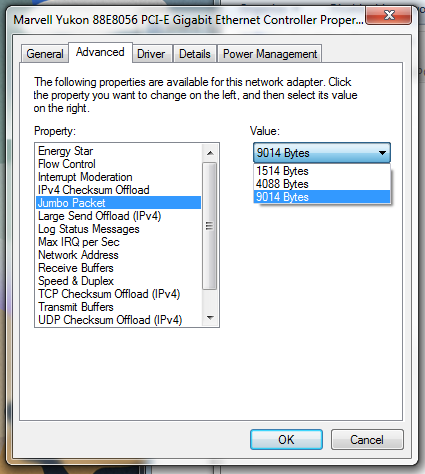
While you are in this dialog, there is another improvement that you can make. This would be enabling Jumbo Frames. Jumbo Frames are not for everyone; you need special support on the switch you are using for them to work. Most modern switches support them, however old devices do not, so it is a good idea to look it up online first. Just so you know, a frame is a packet of data sent over a network. It contains a header and a payload. The header contains metadata about the packet, and the payload is information that is being sent. A normal frame has a payload of 1500 bytes. A jumbo frame has a payload of up to 9000 bytes. Jumbo frames make the network faster because there is less overhead – fewer headers means less wasted bandwidth. I was able to add an extra 10MB/s or so to my gigabit connection by using them. While in the dialog mentioned above, click “Configure” and then go to the “Advanced” tab. Find “Jumbo Packet” in the list, and select the highest value available. Please note that you must have the same setting on the other networked computer(s) for this setting to come into play.

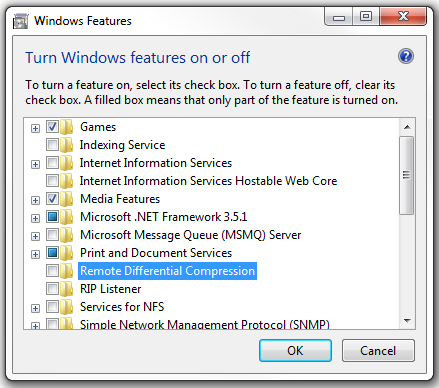
The third is to disable network compression. By default Windows 7 will compress data before sending it over a network. This may sound good, but in reality, it only increases CPU load, and in my case it actually slowed things down. It definitely had nothing to do with my computer’s processing power as my rig is powered by an Intel Core i7 950 overclocked to 4.04GHz which pumps out 60.4Gflops. Now that I’ve bragged a bit, time to get back on topic. To disable compression, you have to find the link that says “Turn Windows Features On and Off” in the Control Panel, which is under Programs. In the list, find “Remote Differential Compression”, and uncheck it.

I found that these changes increased my network speed by almost 100%. I hope they work for you.

How to Speed Up Your Computer With RAID, and Why You Don’t Need an SSD

A Hard Disk Drive

HDD, SSD – What?

A hard drive (HDD) is a computer component that utilizes spinning magnetic disks (platters) and read/write heads to store information permanently. Hard drives are what is known as non-volatile storage, meaning that the information is retained after the power is removed, such as when you turn your computer off.

Hard drives have existed in mainstream computers for a long time, and they pretty much shape our views of computer storage – or at least they did until now.

Hard drives recently encountered a new opponent – solid state drives, or SSDs. An SSD is essentially a large amount of flash memory (the same type of memory in camera cards and USB flash drives) stuffed into a package that looks like an HDD. That way you can theoretically use an SSD anywhere you can use a hard drive. But what’s the difference?

SSD or HDD?

SSDs were developed to replace HDDs and resolve some of the issues that HDDs have. First of all, HDDs have spinning platters and mechanical heads which read/write data. This creates noise and heat, as well as makes the drives very fragile. They also consume a relatively large amount of power, and due to their mechanical nature, they break down easily. However the largest area of improvement is performance. An average hard drive can read/write at approximately 100MB/s, and have an access time of around 15ms. Access time is the time it takes for the drive to seek to an area of the disk and retrieve some information. After reading that, who would want such a horrible piece of technology? Well, there are upsides too. HDDs have enormous storage capacities, ranging up to 3TB (3000GB). They also can be read/written to an unlimited number of times, and can retain their information for absurd lengths of time. They are also abominably cheap; a 1TB (1000GB) HDD will only cost about $70!

SSDs on the other hand have solid state flash memory, which means that all the information is stored on a chip (or series of chips) which have no moving parts. This means less power consumption and makes them more resilient to drops and vibration. The main reason for using an SSD is performance. A typical SSD can read/write around 200MB/s and since there are no moving parts, they have an almost instant access time. This sounds great, so why doesn’t everyone have one? SSDs still produce heat, in fact they sometimes produce more heat than HDDs. They are also unpredictable in terms of failures. SSDs today die at random times, and while there are tools to help predict failures, they don’t always work. (This technology, known as SMART, also exists for HDDs, but is far more advanced.) SSDs also wear out after so many read/write cycles, so their longevity is not so great. The other main points are price and capacity. You can get a 1TB HDD for about $70, while the same capacity SSD will cost upwards of $2,200!!!

The Solution – RAID

Chances are that you have an HDD in your computer, unless you’re rich. So what can you do to get SSD performance with HDDs? The answer is simple – RAID. RAID stands for Redundant Array of Independent Disks. RAID is a technology that allows multiple (2 or more) standard off-the-shelf HDDs to operate together in what is known as an array. There are many forms of RAID, known as levels. Of these levels, there are 2 types: Standard and Extended. Standard levels are numbered 0 through 7, and all extended levels are made by combining standard levels. So what does RAID do? Well that depends. Each level is designed to do something different. For example level 1 is known as mirroring. It requires 2 or more drives. In this mode your computer will store information to each drive simultaneously. In the event that a drive fails, not only is the data safe on the other drive, but the system can continue to operate as if nothing has happened. While that will help protecting your data, it won’t improve performance.

RAID 0 is known as striped storage. Imagine that you have Lego blocks stacked on top of each other alternating colours: red, blue, red, blue…etc. Now think of the blocks numbered from top to bottom starting at 1. Now imagine that each block is a chunk of data and the tower represents a hard drive. The drive will read the top block first, then the next and so forth (following the numbers) at a predictable speed of lets say 100MB/s. Now imagine taking all the blue blocks and making a tower of blue, and a tower of red. So since the numbers stay the same, lets say that block 1 is on the red tower, and block 2 is now on the blue tower and then back to red etc. In this case each tower is a separate drive. When asked to read data, each drive can read 1 block at a speed of 100MB/s in parallel. Since there are 2 drives, and 100MB/s of data in streaming out of both drives, the actual read speed is 200MB/s. In this configuration, each drive stores half of the data. If 3 drives existed, the speed would theoretical triple and this could go on and on. While the math suggests a speed of 200MB/s, the actual speed usually comes to around 250-350MB/s, as the RAID array changes the way access times affect the transfer and other factors. What is even better is that the sizes of the drives are combined, so two 1TB drives would create a 2TB array in RAID 0. So if we bought 2 drives, we could create a 2TB RAID 0 array that is significantly faster than an average SSD for around $140, rather than $6,000 for an equivocally sized SSD.

I personally like to use RAID level 10. That is levels 1+0. It uses a minimum of 4 drives, and creates 2 striped arrays for performance, and then mirrors them for data security.

RAID Sounds Awesome! How Do I Get It?

RAID is a technology, not a device. As I stated before, it is a way of using regular drives in special ways. The first criteria is that you must have a computer that supports more than one drive. Most (if not all desktops) do, but most laptops do not. If you do however have a desktop, the first order of business is to get yourself a second (or maybe third) hard drive and install it. Installation is not very hard, so don’t fret. One important note is that when you buy a drive, get one that is the same size as the drive you already have. RAID arrays can work with different sized disks, however the size of the array is restricted by the size of the smallest drive, so if you buy a larger or smaller disk, you may have wasted space. Once that’s done, you need to choose what type of RAID you want to use. There are 3 types: Hardware RAID, FakeRAID, and Software RAID. Hardware RAID is the best. It is supported by all operating systems and the performance is optimal. The only downside is that you would have to purchase a physical device know as a RAID controller and install it in your computer, and they run around $300. Software RAID is most likely what you would go with. This type uses a program in your operating system to manage the array(s). Performance for software RAID is comparable to that of hardware RAID, although support depends on your operating system. Those who use Windows or Linux should be just fine. FakeRAID is the last resort. It is a cross between hardware and software. It is like hardware because arrays can be partially set up outside the operating system (in the BIOS for example). FakeRAID however still uses software on the operating system to control the arrays. The performance of FakeRAID is not as good as true software RAID because the drivers usually are not optimized for the operating system as much as software RAID drivers. FakeRAID is only useful if you have multiple operating systems on your computer, and need support for the same arrays in both operating systems. Since FakeRAID is partially built-in to the computer, your computer must support FakeRAID in order to use it.

In a later post I will talk about setting up RAID arrays in Ubuntu Linux using a software known as mdadm.

Windows 7 Black Progress Bar Theme

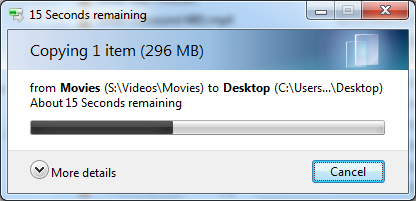
Copy file dialogue

The taskbar colour also changes

Just a few days ago I thought that I would try to make my plain Windows 7 system look a little bit better. I had thought that maybe changing the colour of my progress bars would do the trick. I set out to find a patched aero.msstyles theme file on the web, and found a couple, yet none were black. The developers had stated that they would not release more colours, nor could they get the taskbar graphics to change colour as well.

A quick run through ResHack and GIMP, and I had my patched file with black resources. It took me a great deal of time to find the resource for the taskbar, in the over 1000 resources in the theme. Regardless, I have the working theme here for anyone wishing to use it.

You can downloaded it from here: Black Progressbars for Windows 7

Please note that you must have the patched Windows theme files installed in order to install custom themes. You can get the files here: Uxtheme (x86 & x64)

To install the theme, run the program Replacer, and follow the instructions to replace the original 3 files with the ones in the uxtheme archive. Make sure to run the program as an administrator. I found that I had to delete the temporary folder it creates, each time I ran it or it would give me an error saying “error extracting data”.

After the uxtheme patch is installed, the rest is easy. Take ownership of the file “C:/Windows/Resources/Themes/Aero” using the Take Ownership explorer extension (Right-click->Take Ownership). I suggest taking a backup copy of the file just in case you want to revert later on. Just change the theme to Windows 7 Basic, then copy the aero.msstyles file from the archive above into “C:/Windows/Resources/Themes/Aero”. Change the theme back to the one you were using before, and then restart (or just log off). You should now have black progress bars!

If you are unsure of how to use any of the software above, just Google it. They are very popular. If you restart at the end and end up with a ‘Windows 95-esque’ theme, then it is because you did not install the uxtheme patch correctly, as it has nothing to do with my theme.

Why Ubuntu Unity Will Suck

Ubuntu 11.04's Unity Interface

Ubuntu 11.04's Unity Interface

Now before you get all emotional on me, I just want to let you know that I personally love Ubuntu, and I use it everywhere, on all my computers, and even my servers. However that may be about to change. Ubuntu 11.04 codename Natty Narwhal, which will be released in April, will implement many new and drastic changes to the OS, and they all have to do with one thing…Unity.

What is Unity?

Before I can talk about that, you need to know that Ubuntu currently uses GNOME, a graphical environment which makes up mostly everything that you interact with by default. Unity is a shell interface for GNOME, which is written by Canonical, the company behind Ubuntu.

So what’s happening?

Canonical, is replacing the regular GNOME shell with Unity. Canonical already did this to their netbook OS last year, but is now going to do the same with their regular desktop OS too.

Why is this bad?

The whole reason that I, (and lots of other people) use Ubuntu and other distributions of Linux, is that the OS is freely open to customization and modification. Unity is entirely locked. Nothing about the interface can be changed at all. You cant even move the dock from one side of the screen to the other, and you can even to that in Windows! Regardless of customization options, the interface is not suited for desktops at all. It was designed for netbooks and it should stay on netbooks. Once you get past the ooohs and aaahs of the graphics, it really isn’t all that useful. Besides, if you don’t have 3D GL acceleration on your system, Unity is just a waste. Unity is also proprietary to Ubuntu, so not all applications will like it, and neither will all developers support it. Unity will make application development more difficult, as developers will have to support more than one interface. The only good news is that Ubuntu will still have the capability of running the regular GNOME interface.

My advice: when 11.04 comes out, make it your first priority to remove Unity.